
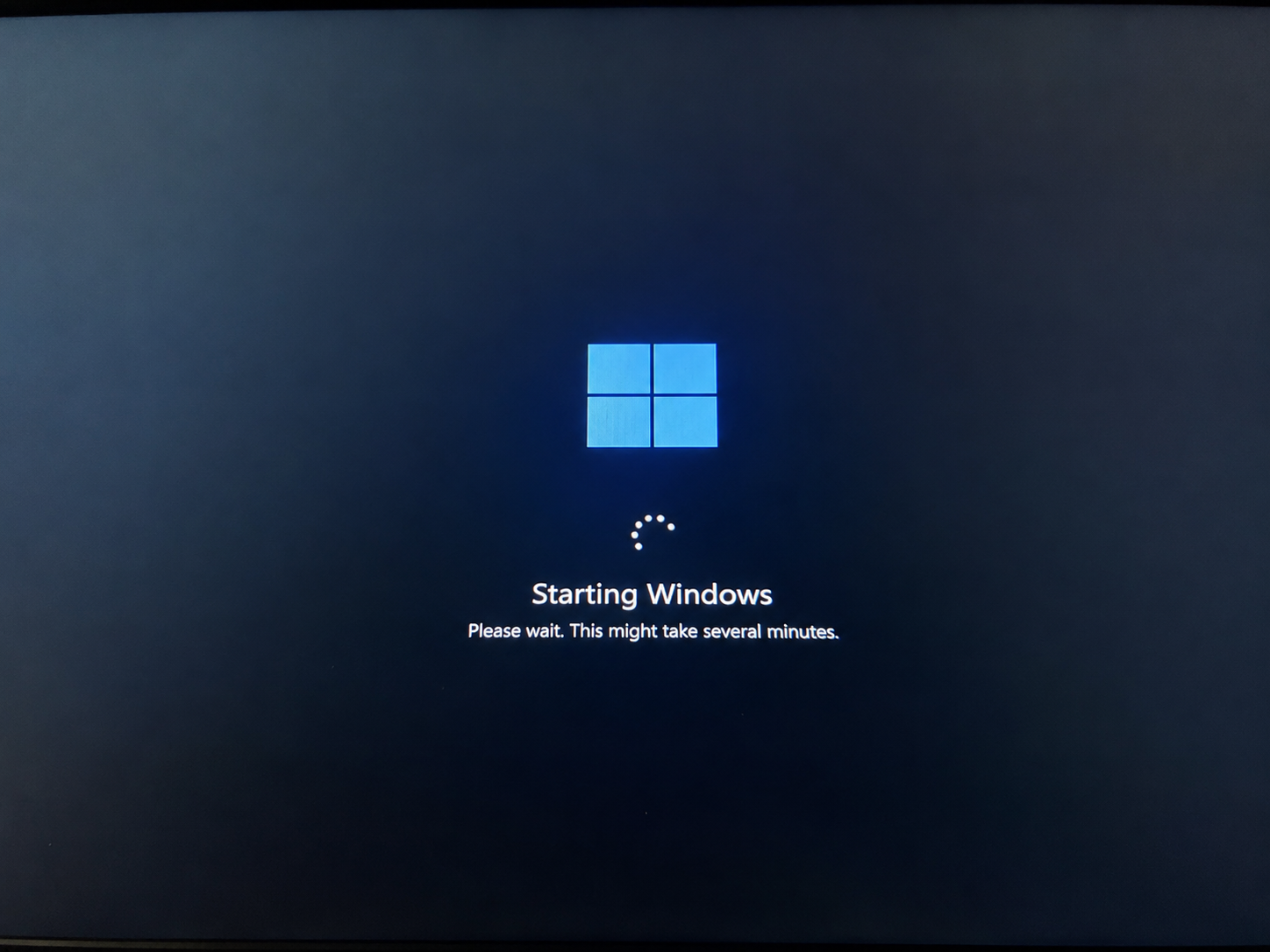
Windows update messages usually describe the stage of the update process.
Windows Update is a system process that checks for available updates, downloads files, prepares installation packages, applies changes, and records the result in update history. Some updates finish quickly, while others require a restart before Windows can complete them.
A message such as downloading, installing, pending restart, or working on updates usually describes where Windows is in the update flow. If the process stops or cannot complete, Windows may show a failed update entry or an error code.
Error codes are reference identifiers. They do not always explain the issue in everyday language, but they help identify whether the update failed during download, preparation, installation, restart, storage handling, or component verification.
Windows may also show “undoing changes” when an update cannot be applied safely. In that case, Windows attempts to roll back the update so the device can return to a usable state.
Driver updates may sometimes appear through Windows Update or optional updates. A driver update can affect hardware communication such as graphics, audio, network, Bluetooth, storage, or chipset behavior.
Common Win update screens.
Match the message on screen with the usual meaning and where users commonly check next.
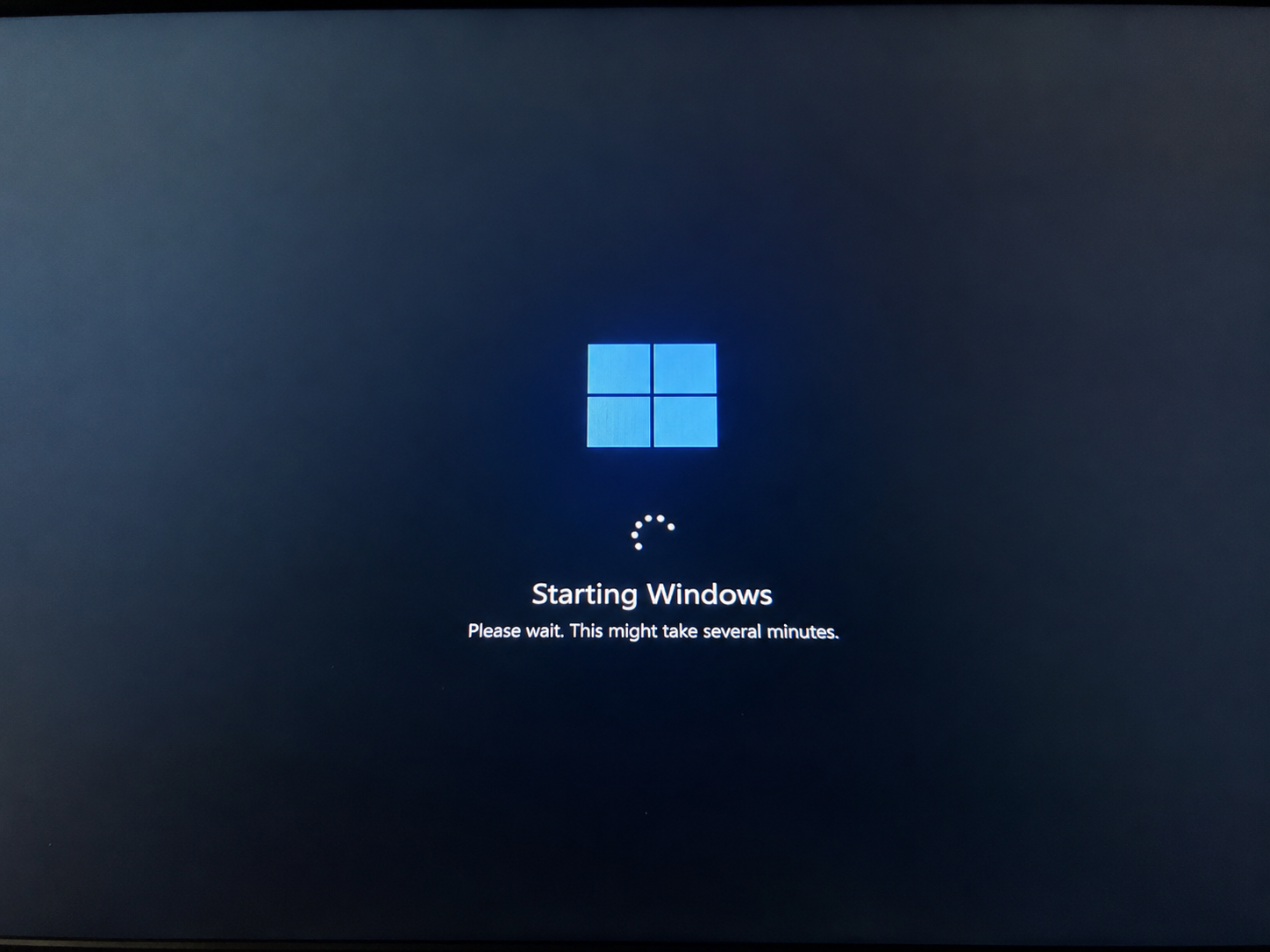
Update Stuck at 0%
What you see
Win Update shows downloading or installing, but progress does not move.
What it may mean
Update files may be waiting on internet, storage, update service, or restart state.
Where to check
Internet, storage space, restart, update settings
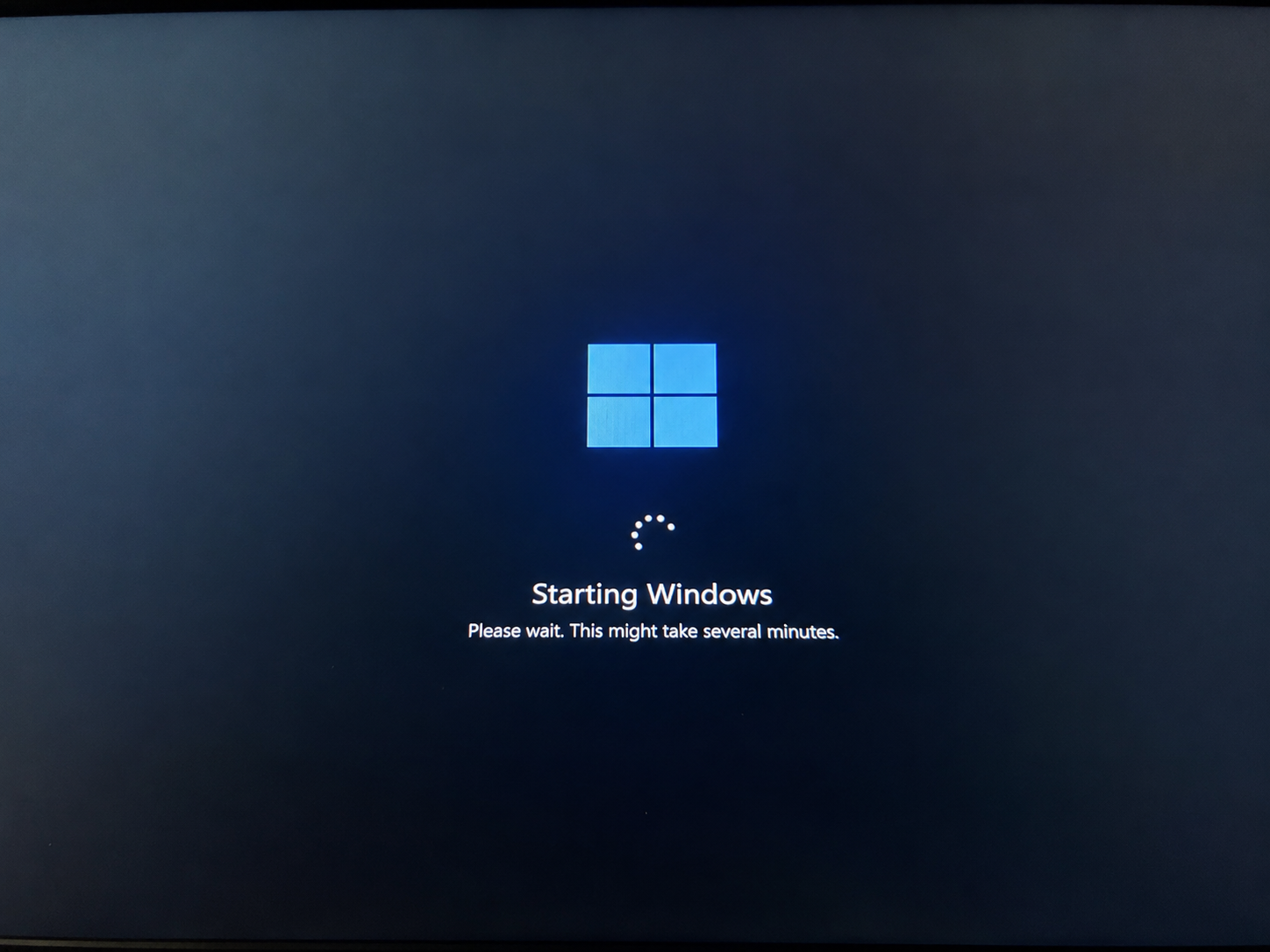
Update Error Code
What you see
A code such as 0x800 appears after update failure.
What it may mean
Win uses error codes to identify why an update did not complete.
Where to check
Update history, troubleshooter, storage, date and time
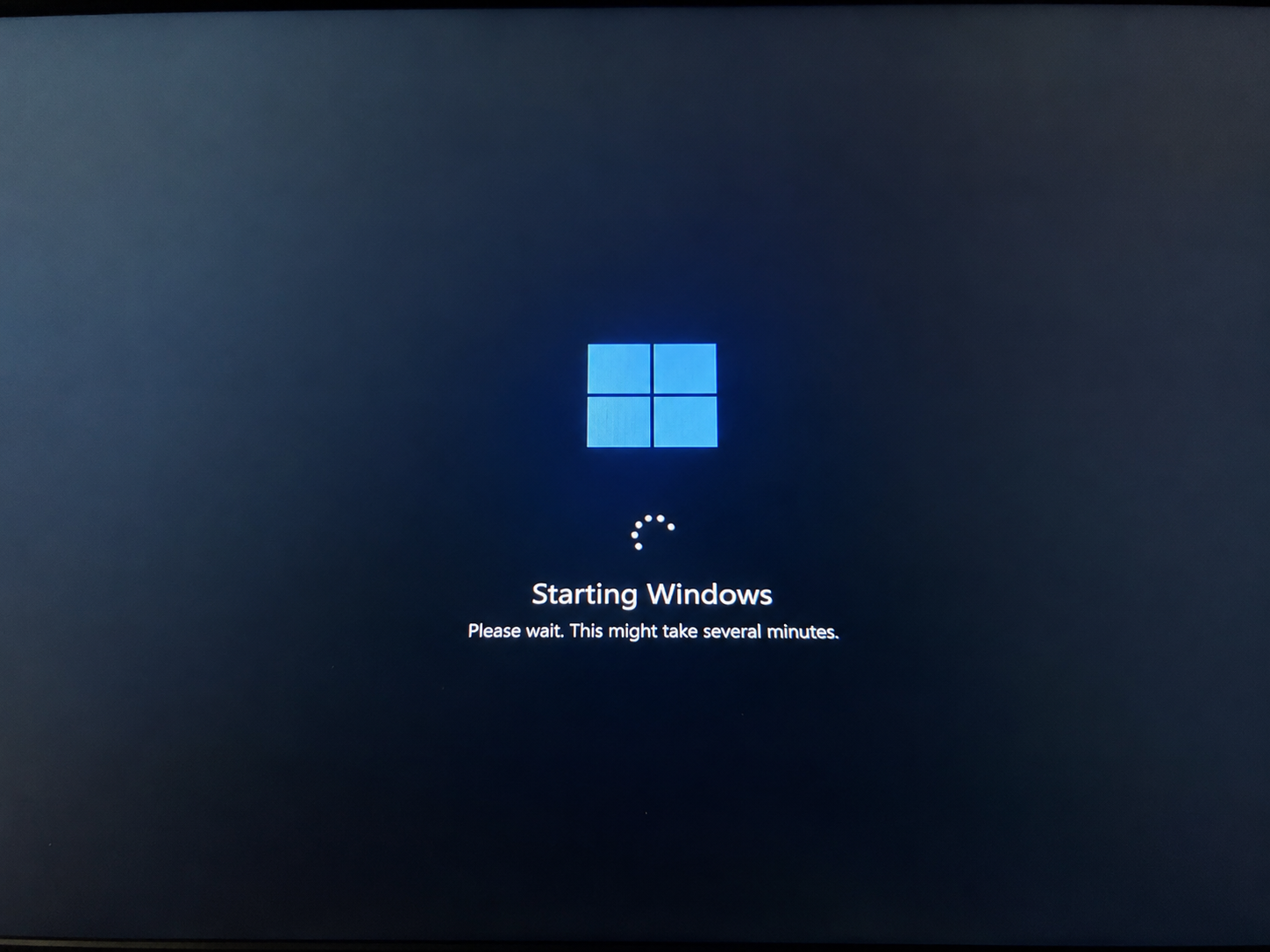
Restart Loop
What you see
Computer keeps restarting while applying updates.
What it may mean
Win may be trying to complete pending configuration repeatedly.
Where to check
Update status, restart screen, recovery options
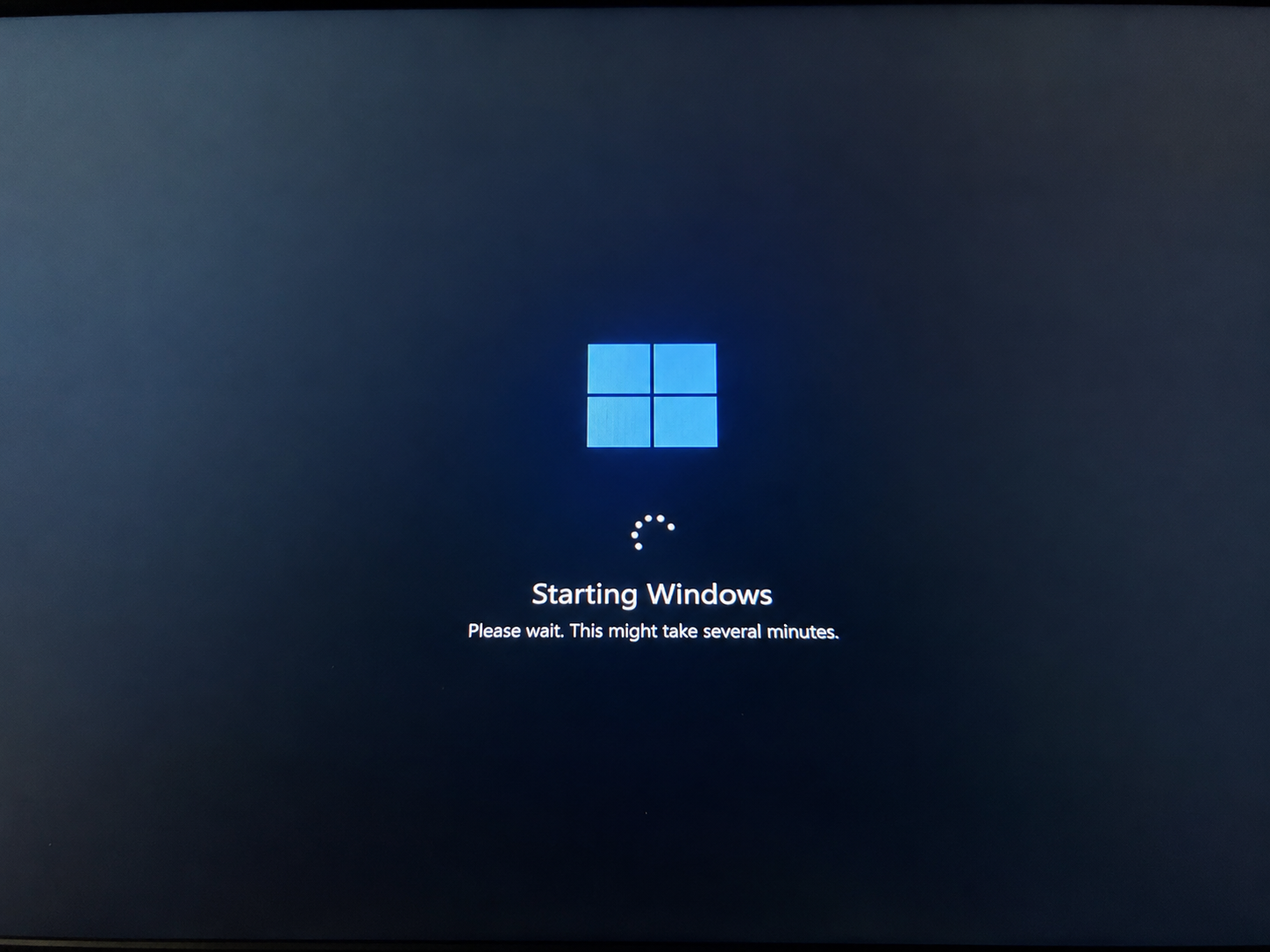
Undoing Changes
What you see
Screen says undoing changes made to your computer.
What it may mean
Win attempted an update but rolled back because it could not apply correctly.
Where to check
Update history, failed update code, free disk space
Update issues users may notice.
These are common learning areas around Win Update, error codes, restart cycles, and driver updates.
Update Stuck
Progress stays on the same percentage for a long time.
Error Code
An alphanumeric code appears after update failure.
Restart Loop
The system keeps restarting while applying updates.
Undoing Changes
Win rolls back after a failed update attempt.
Driver Conflict
A device behaves differently after a driver update.
Not Eligible
The PC may not meet update requirements.
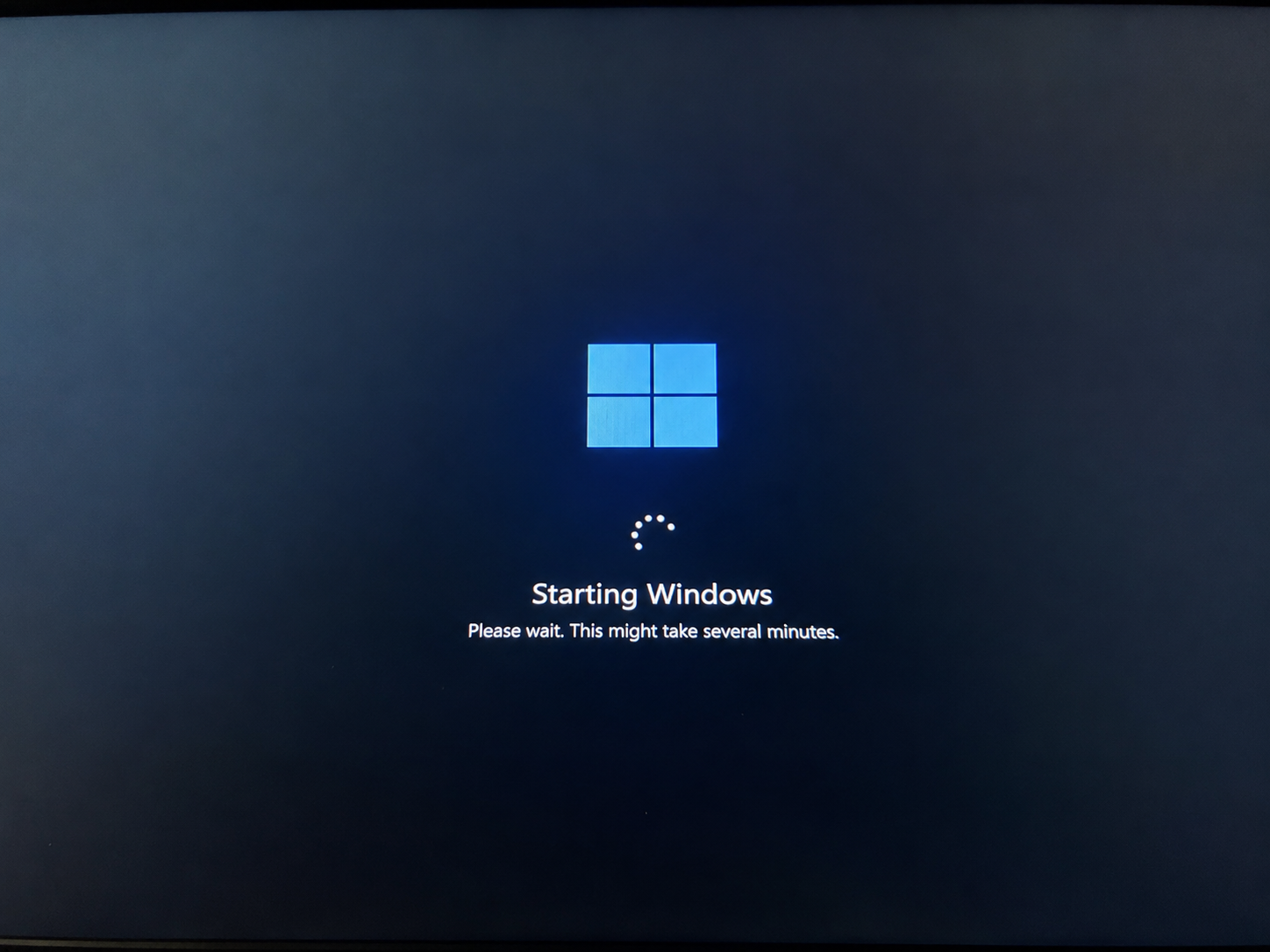
Check installed and failed updates.
Update history helps users understand which updates completed, which updates failed, and whether a driver update was included.
Look for
Quality updates, driver updates, failed install messages, install dates, and error codes.
How Win usually applies updates.
Check For Updates
Win looks for available system and security updates.
Download Files
Required update files are downloaded to the computer.
Prepare Installation
Win prepares update packages before applying them.
Install Update
Files are installed and system components are updated.
Restart
The system restarts to finish pending update changes.
Verify
Win confirms whether the update was applied successfully.
Where drivers fit into Win Update.
Win Update can sometimes deliver driver updates along with regular system updates.
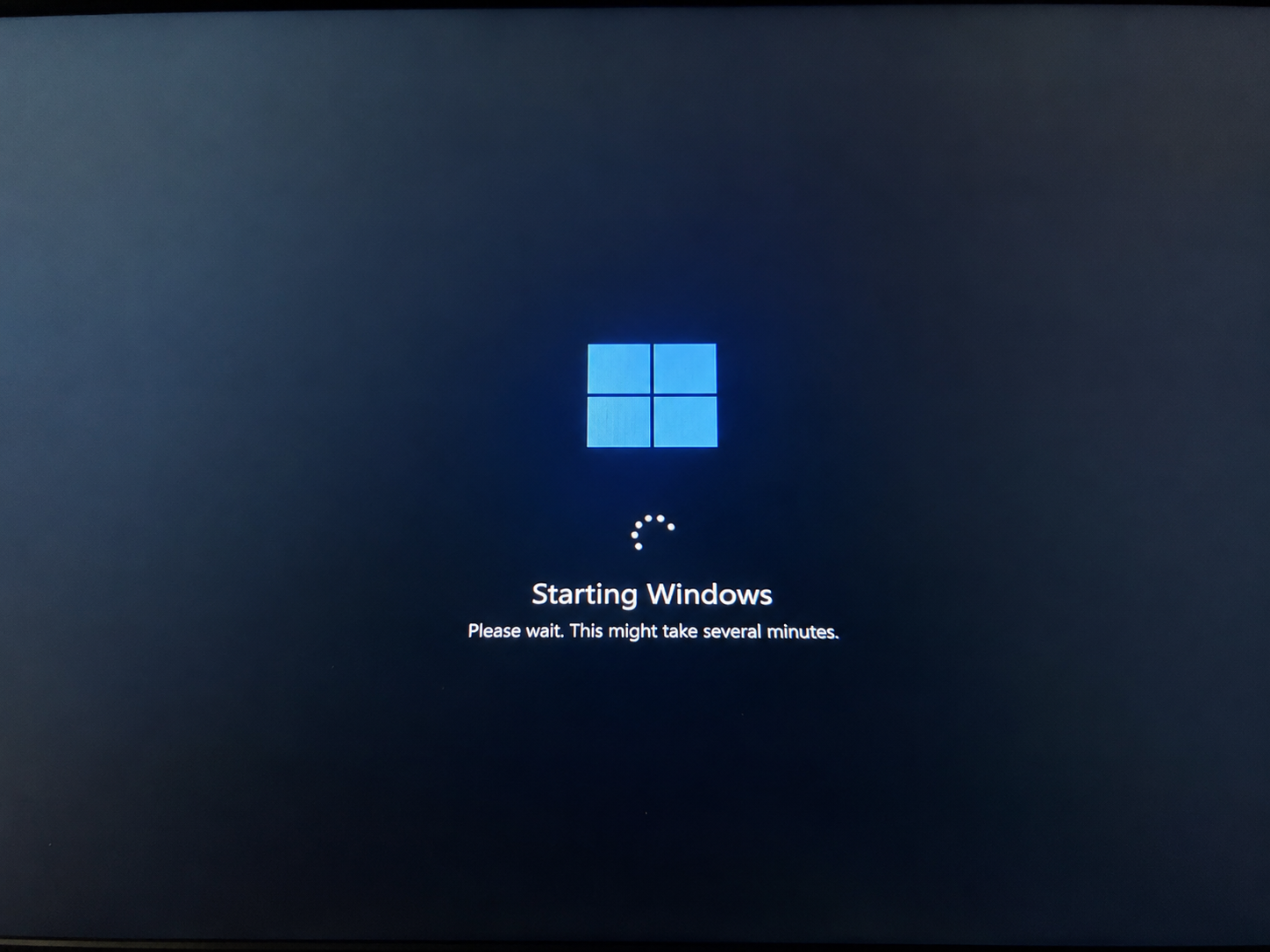
Driver updates may appear in Optional Updates.
A driver update may affect graphics, network, audio, Bluetooth, storage, or chipset communication. If a device behaves differently after updates, Device Manager and update history are useful places to review.
Graphics Drivers
Display, screen output, video playback, and graphics behavior.
Network Drivers
Wi-Fi and Ethernet adapter communication.
Audio Drivers
Speaker, microphone, and sound device behavior.
Bluetooth Drivers
Wireless devices, pairing, headset, mouse, and keyboard connection.
Quality updates vs feature updates.
Quality updates usually focus on security and reliability. Feature updates usually add larger system changes, new features, or version upgrades.
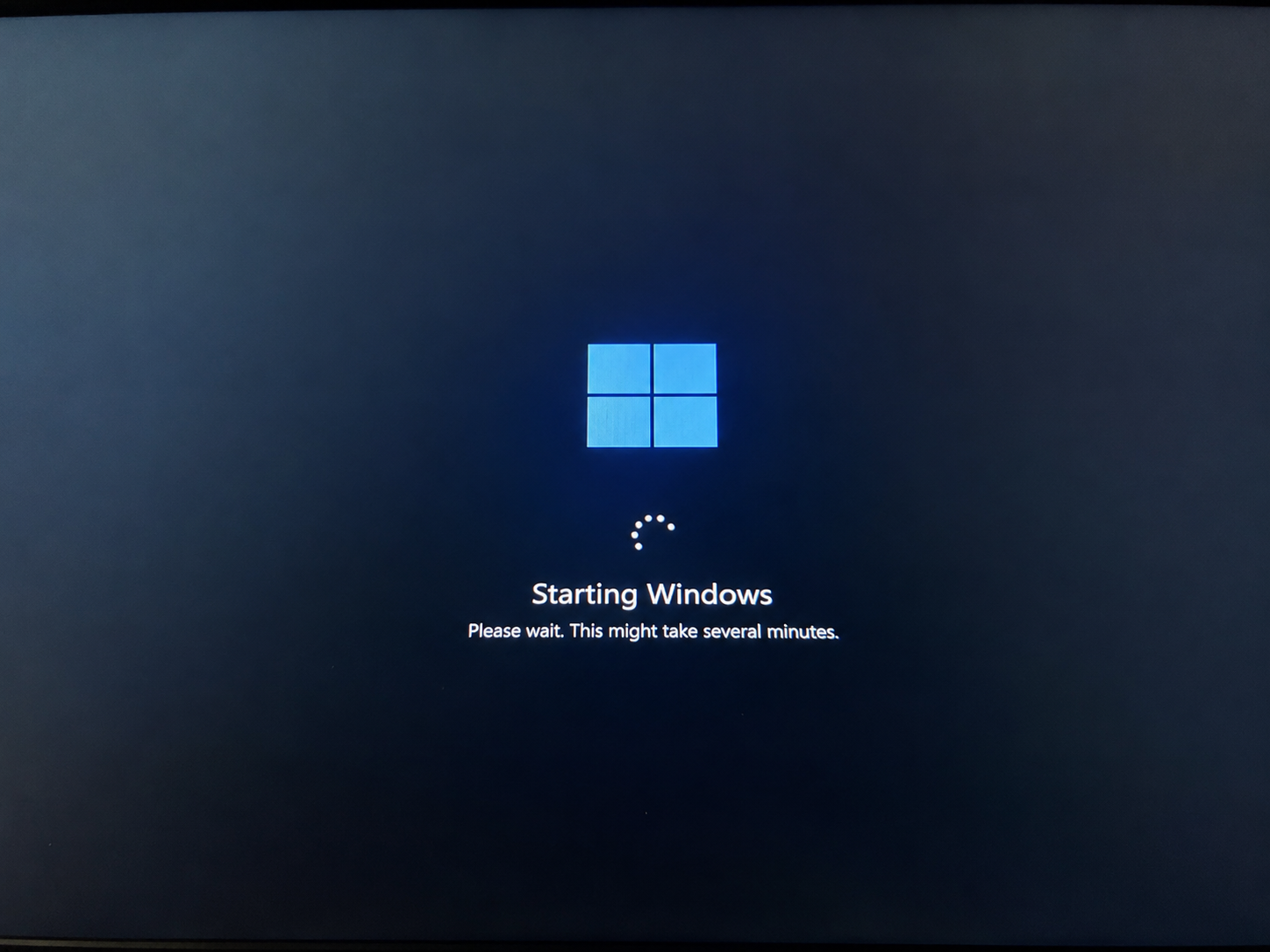
Update signs and where to check.
Download stuck
Internet connection, storage space, Win Update settings
Error code appears
Update history, troubleshooter, failed update details
Restart required
Power menu, update status, pending restart message
Undoing changes
Update history, free disk space, recent failed updates
Driver issue after update
Device Manager, optional updates, driver details
PC not eligible
System requirements, storage, security settings, update page
Understand the words shown inside Windows Update.
These terms commonly appear in Windows Update, update history, optional updates, restart screens, and error message pages.
Checking for updates
Windows is looking for available updates for the device.
Downloading
Update files are being received before installation begins.
Installing
Windows is preparing and applying update files to the system.
Pending restart
A restart is required before the update can fully finish.
Update history
A Windows page that shows installed, failed, and attempted updates.
Optional updates
An area where some drivers, previews, or non-critical updates may appear.
Quality update
A regular update often related to security, reliability, or fixes.
Feature update
A larger update that may introduce broader Windows changes or version upgrades.
Win update questions.
Simple answers about update messages, error codes, restart loops, and driver updates.
It may be waiting on internet connection, disk space, update services, restart state, or background system activity.
An error code is a system reference that helps identify why an update did not complete.
This usually appears when Win cannot apply an update and rolls back to the previous state.
Yes. Some driver updates may appear through Win Update or Optional Updates.
Update History shows installed updates, failed updates, and related update entries.
Optional updates may include certain drivers, previews, or non-critical updates.
A restart loop happens when the system repeatedly restarts while trying to finish update configuration.
Yes. Large updates may need free space for download, temporary files, and installation.
Quality updates are usually smaller security/reliability updates, while feature updates are larger version changes.
Yes. This guide explains Win update screens, messages, and concepts for educational reading.
Explore more learning guides.
Read more educational guides about printer learning, email basics, PC performance, and Win update concepts.